Integrating with Steam #
Set up the store #
You can map a Pragma order to a Steam inventory item or an application id.
Plugin configuration #
Once you have setup your application and store in Steam, you are ready to configure Pragma. You can configure through the shard config file or using the social operator portal.
Check out the Steam’s auth documentation to learn how to generate a Steam’s web key.
social:
  # a SteamCredentialsConfig can be shared with:
  # SteamIdentityProviderPlugin and SteamOrderProviderPlugin
  shared:
    configs:
      Steam:
        class: "pragma.shared.SteamCredentialsConfig"
        config:
          appId: "[steam-app-id]"
          steamWebAPIKey: "[encrypted-steam-web-api-key]" # encrypted value
  pluginConfigs:
    ThirdPartyNodeService.orderProviderPlugins:
      plugins:
        Steam:
          class: "pragma.order.SteamOrderProviderPlugin"
          config:
            sharedConfigKey: "Steam" # required when using shared config
    AccountService.identityProviderPlugins:
      plugins:
      Steam:
        class: "pragma.account.SteamIdentityProviderPlugin"
        config:
          sharedConfigKey: "Steam" # required when using shared config
          playerLoginEnabled: true
          accountLinkingEnabled: true
          accountLinkingCooldownInDays: 30
Any configuration set through the portal will override any values assigned in a config yml file.
- Do not manually encrypt any secrets. The API automatically encrypts all sensitive values during submission.
- You only need to enter credential values in one form. Portal will store credentials under shared config.
Order provider configuration #
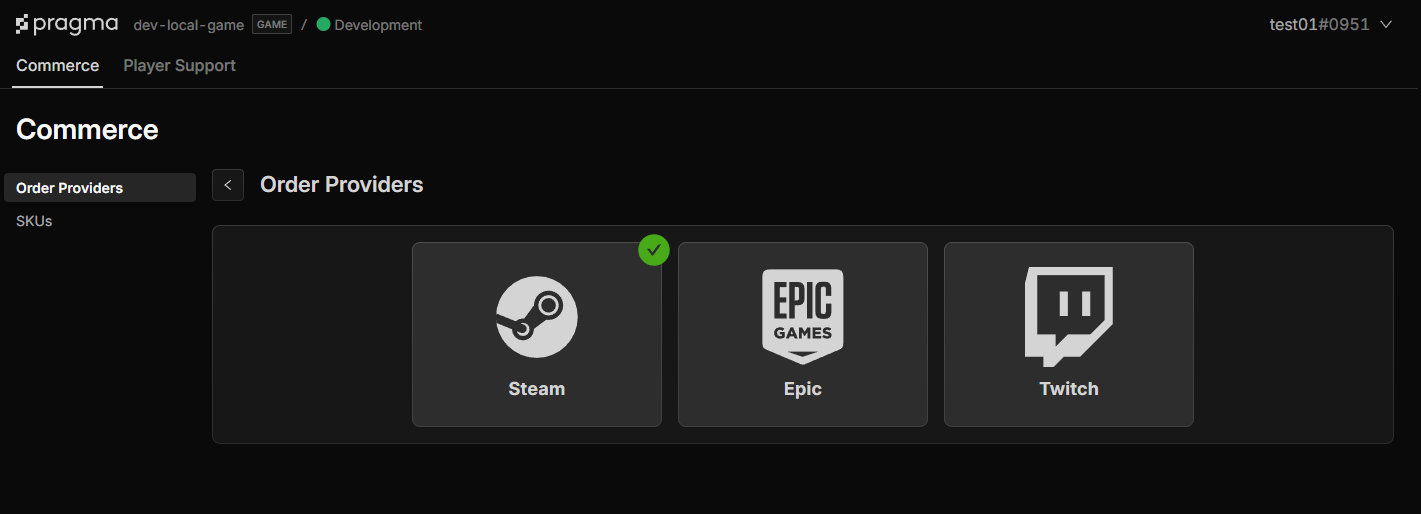
- Navigate to the Order Providers page: select the
CommerceTab →Order Providersin side menu. - Select platform to configure and fill out the form.
- Click
Confirmto see changes. - Click
Deployto apply changes.
Id provider configuration #
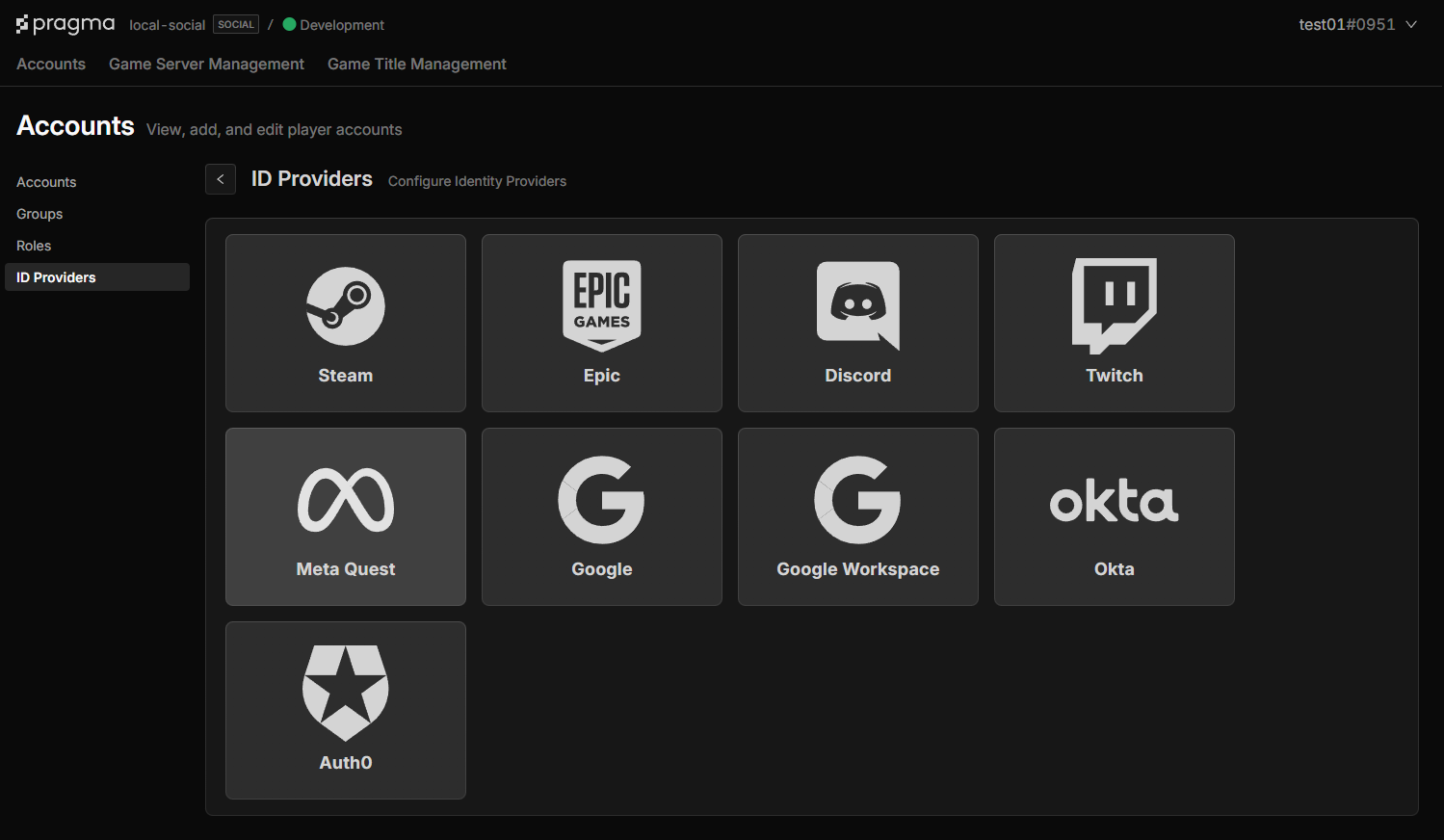
- Navigate to the ID Provider page: select the
AccountsTab →ID Providerin the side menu. - Select a provider and fill out the form.
- Click
Confirmto see changes. - Click
Deployto apply changes.
Order mapping example #
The content format for a Steam inventory item and application are different. Follow examples below when adding order mapping content.
Order mapping example for a inventory item:
[project]/content/src/OrderMappingsSpecs.json
{
    "skuId": "SmallGoldBundle",
    "sources": [
        {
            "provider": "STEAM",
            "steamSource": {
                "inventory": {
                    "itemDefId": "[item-def-id-from-steam-catalog]"
                }
            }
        }
    ]
}
Order mapping example for a application id:
[project]/content/src/OrderMappingsSpecs.json
{
    "skuId": "SmallGoldBundle",
    "sources": [
        {
            "provider": "STEAM",
            "steamSource" : {
                "ownership" : {
                    "appId" : "[application-id]"
                }
            }
        }
    ]
}
Run the content apply command to validate and generate content catalogs.
./pragma content apply
Testing #
To test order processing on a local or dev environment there are a couple of things you can do to make things easier.
Link a Steam account to a Unsafe account using the player portal #
- This lets you authenticate and call the fulfill orders API through a unsafe account vs having to login with a Steam account.
- You can use the Postman collection for this flow.
Grant items to the Steam account using the Add Item API #
- This API lets you grant items without going through the Steam store. Use this when you want to test the Pragma processing and not Steam’s payment flow.
Refunds and charge backs #
Steam does not support refunds on inventory items that have been consumed. If Pragma has recorded an order for a Steam inventory item, it has been consumed and can not be returned.
%22/%3E%3Cpath%20d=%22M82%20113.698c1.821%201.063%201.834%202.78.0%203.843l-13.084%207.687a7.17%207.17.0%2001-3.284.798%207.17%207.17.0%2001-3.284-.798l-13.16-7.687c-1.821-1.063-1.834-2.78.0-3.843l13.084-7.687a7.168%207.168.0%20016.568.0L82%20113.698z%22%20fill=%22url(%23b)%22/%3E%3Cpath%20d=%22M73.16%20114.658a.985.985.0%2001.487.368%201.037%201.037.0%20010%201.186.981.981.0%2001-.486.369l-6.383%203.846a3.438%203.438.0%2001-3.198.0l-6.42-3.846a.982.982.0%2001-.486-.369%201.035%201.035.0%20010-1.186.986.986.0%2001.486-.368l6.383-3.846a3.438%203.438.0%20013.198.0l6.42%203.846z%22%20fill=%22%23fff%22/%3E%3Cpath%20d=%22M111%2048c-1.455-.642-37.943-12.532-45.55-14.5-7.607%202.022-43.495%2016.358-44.95%2017l37.504%2065.718c.106.239.291.435.524.556l5.542%203.209a3.038%203.038.0%20002.76.0l5.51-3.209c.25-.123.441-.338.535-.599L111%2048z%22%20fill=%22url(%23c)%22/%3E%3Cpath%20fill-rule=%22evenodd%22%20clip-rule=%22evenodd%22%20d=%22M109.533%2040.686c-6.925%203.665-17.69%203.562-24.4-.311-6.892-3.98-6.892-10.431.0-14.41%201.422-.822%203.026-1.473%204.737-1.955-17.595-6.637-41.42-5.496-56.87%203.424-17.72%2010.23-17.72%2026.815.0%2037.044%2017.719%2010.23%2046.447%2010.23%2064.167.0%2011.194-6.462%2015.316-15.461%2012.366-23.792z%22%20fill=%22url(%23d)%22/%3E%3Cg%20opacity=%22.7%22%20filter=%22url(%23e)%22%3E%3Ccircle%20r=%2237.046%22%20transform=%22scale(1.22477%20.70706)%20rotate(45%20-55.303%2098.057)%22%20fill=%22url(%23f)%22/%3E%3C/g%3E%3Cpath%20fill-rule=%22evenodd%22%20clip-rule=%22evenodd%22%20d=%22M96.321%2027.615a8.615%208.615.0%2001-2.019-.824c-2.848-1.644-2.848-4.31.0-5.954%201.296-.748%202.958-1.156%204.653-1.223a41.764%2041.764.0%2000-1.788-1.092c-17.72-10.23-46.448-10.23-64.168.0-17.72%2010.23-17.72%2026.814.0%2037.044s46.448%2010.23%2064.168.0c8.025-4.633%2012.416-10.57%2013.172-16.63-4.598%201.417-10.442%201.007-14.318-1.23-4.746-2.74-4.746-7.183.0-9.923.099-.057.199-.113.3-.168zm9.666-1.923a2.064%202.064.0%2001-.068.076l.139.01c-.023-.03-.047-.058-.071-.086z%22%20fill=%22url(%23g)%22/%3E%3Ccircle%20r=%222%22%20transform=%22matrix(.86604%20.49997%20-.86604%20.49997%2062.464%2051)%22%20fill=%22%23121212%22/%3E%3Ccircle%20r=%222%22%20transform=%22matrix(.86604%20.49997%20-.86604%20.49997%2081.464%2045)%22%20fill=%22%23121212%22/%3E%3Ccircle%20r=%222%22%20transform=%22matrix(.86604%20.49997%20-.86604%20.49997%2043.642%2031)%22%20fill=%22%23121212%22/%3E%3Ccircle%20r=%222%22%20transform=%22matrix(.86604%20.49997%20-.86604%20.49997%2039.464%2045)%22%20fill=%22%23121212%22/%3E%3Ccircle%20r=%222%22%20transform=%22scale(1.22477%20.70706)%20rotate(45%20-12.95%2084.623)%22%20fill=%22%23121212%22/%3E%3Ccircle%20r=%222%22%20transform=%22matrix(.86604%20.49997%20-.86604%20.49997%2062.464%2035)%22%20fill=%22%23121212%22/%3E%3Cdefs%3E%3ClinearGradient%20id=%22a%22%20x1=%2265.415%22%20y1=%22133.384%22%20x2=%2262.707%22%20y2=%22116.141%22%20gradientUnits=%22userSpaceOnUse%22%3E%3Cstop%20stop-color=%22%23bebebe%22/%3E%3Cstop%20offset=%221%22%20stop-color=%22%23fff%22/%3E%3C/linearGradient%3E%3ClinearGradient%20id=%22b%22%20x1=%2265.415%22%20y1=%22126.531%22%20x2=%2257.672%22%20y2=%22104.287%22%20gradientUnits=%22userSpaceOnUse%22%3E%3Cstop%20stop-color=%22%23bebebe%22/%3E%3Cstop%20offset=%221%22%20stop-color=%22%23fff%22/%3E%3C/linearGradient%3E%3ClinearGradient%20id=%22c%22%20x1=%2265.409%22%20y1=%22107.427%22%20x2=%2265.409%22%20y2=%2274.173%22%20gradientUnits=%22userSpaceOnUse%22%3E%3Cstop%20stop-color=%22%23fff%22%20stop-opacity=%22.72%22/%3E%3Cstop%20offset=%221%22%20stop-color=%22%23fff%22%20stop-opacity=%220%22/%3E%3C/linearGradient%3E%3ClinearGradient%20id=%22d%22%20x1=%2265.007%22%20y1=%2270.496%22%20x2=%2261.493%22%20y2=%22.477%22%20gradientUnits=%22userSpaceOnUse%22%3E%3Cstop%20stop-color=%22%23edf2f9%22/%3E%3Cstop%20offset=%221%22%20stop-color=%22%23fff%22%20stop-opacity=%220%22/%3E%3C/linearGradient%3E%3ClinearGradient%20id=%22f%22%20x1=%2270.425%22%20y1=%2221.274%22%20x2=%22-.284%22%20y2=%2248.41%22%20gradientUnits=%22userSpaceOnUse%22%3E%3Cstop%20stop-color=%22%231efff1%22/%3E%3Cstop%20offset=%221%22%20stop-color=%22%231548ff%22/%3E%3C/linearGradient%3E%3ClinearGradient%20id=%22g%22%20x1=%2220.05%22%20y1=%2263.78%22%20x2=%2255.07%22%20y2=%22-9.969%22%20gradientUnits=%22userSpaceOnUse%22%3E%3Cstop%20offset=%22.156%22%20stop-color=%22%231efff1%22/%3E%3Cstop%20offset=%221%22%20stop-color=%22%231548ff%22/%3E%3C/linearGradient%3E%3Cfilter%20id=%22e%22%20x=%224.71%22%20y=%226.763%22%20width=%22120.747%22%20height=%2282.388%22%20filterUnits=%22userSpaceOnUse%22%20color-interpolation-filters=%22sRGB%22%3E%3CfeFlood%20flood-opacity=%220%22%20result=%22BackgroundImageFix%22/%3E%3CfeBlend%20in=%22SourceGraphic%22%20in2=%22BackgroundImageFix%22%20result=%22shape%22/%3E%3CfeGaussianBlur%20stdDeviation=%227.5%22%20result=%22effect1_foregroundBlur%22/%3E%3C/filter%3E%3C/defs%3E%3C/svg%3E)