Getting started #
This guide covers the starting steps for configuring Pragma to process orders setup with a supported provider.
- Set up store with a supported provider.
- Configure an Order Provider Plugin.
- Define the Order Mappings content catalog.
1. Set up store with a supported provider #
Before integrating with Pragma Engine, you’ll need to set up an account with a supported provider. For more information on setting up stores with a provider’s system, refer to their respective documentation.
You can map an order to ownership of a Steam application or inventory item.
You can map an order to any type of Epic offer.
Setup Twitch drops.
2. Configure the Order Provider Plugin #
Add the order provider plugins under the social config.
Requirements:
- Each order provider configured must also be configured as a identity provider.
- You must allow users to log in with this provider and/or link their account.
- The credentials configured for both plugins must be the same. Use shared config to avoid miss-configuration.
social:
  shared:
    configs:
      Steam:
        class: "pragma.shared.SteamCredentialsConfig"
        config:
          appId: "[steam-app-id]"
          steamWebAPIKey: "[encrypted-steam-web-api-key]"
      Epic:
        class: "pragma.shared.EpicCredentialsConfig"
        config:
          clientId: "[epic-client-id]"
          clientSecret: "[encrypted-epic-client-secret]"
          deploymentId: "[epic-deployment-id]"
          sandboxId: "[epic-sandbox-id]"
      Twitch:
        class: "pragma.shared.TwitchCredentialsConfig"
        config:
          clientId: "[twitchClientId]"
          clientSecret: "[encrypted-twitch-client-secret]"
  pluginConfigs:
    ThirdPartyNodeService.orderProviderPlugins:
      plugins:
        Steam:
          class: "pragma.order.SteamOrderProviderPlugin"
          config:
            sharedConfigKey: "Steam"
        Twitch:
          class: "pragma.order.TwitchOrderProviderPlugin"
          config:
            sharedConfigKey: "Twitch"
            gameId: "{twitchGameId}"
        Epic:
          class: "pragma.order.EpicOrderProviderPlugin"
          config:
            sharedConfigKey: "Epic"
            clawbackPollingEnabled: true # enables refund processing
Any configuration set through the portal will override any values assigned in a config yml file.
- Do not manually encrypt any secrets. The API automatically encrypts all sensitive values during submission.
- You only need to enter credential values in one form. Portal will store credentials under shared config.
Order provider configuration #
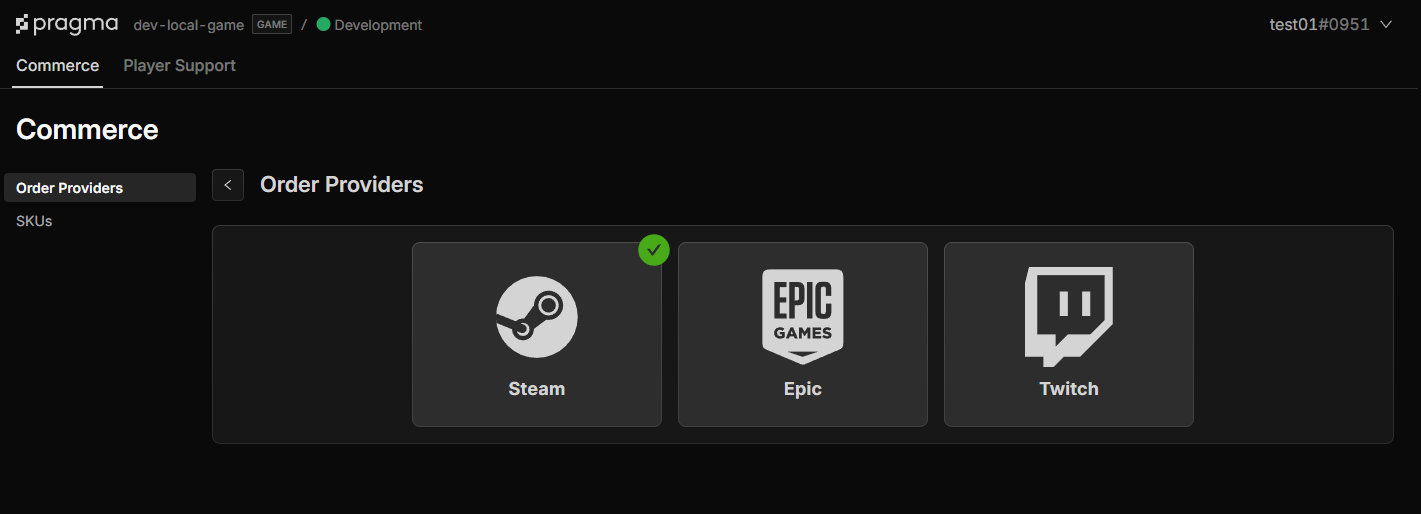
- Navigate to the Order Providers page: select the
CommerceTab →Order Providersin side menu. - Select platform to configure and fill out the form.
- Click
Confirmto see changes. - Click
Deployto apply changes.
Id provider configuration #
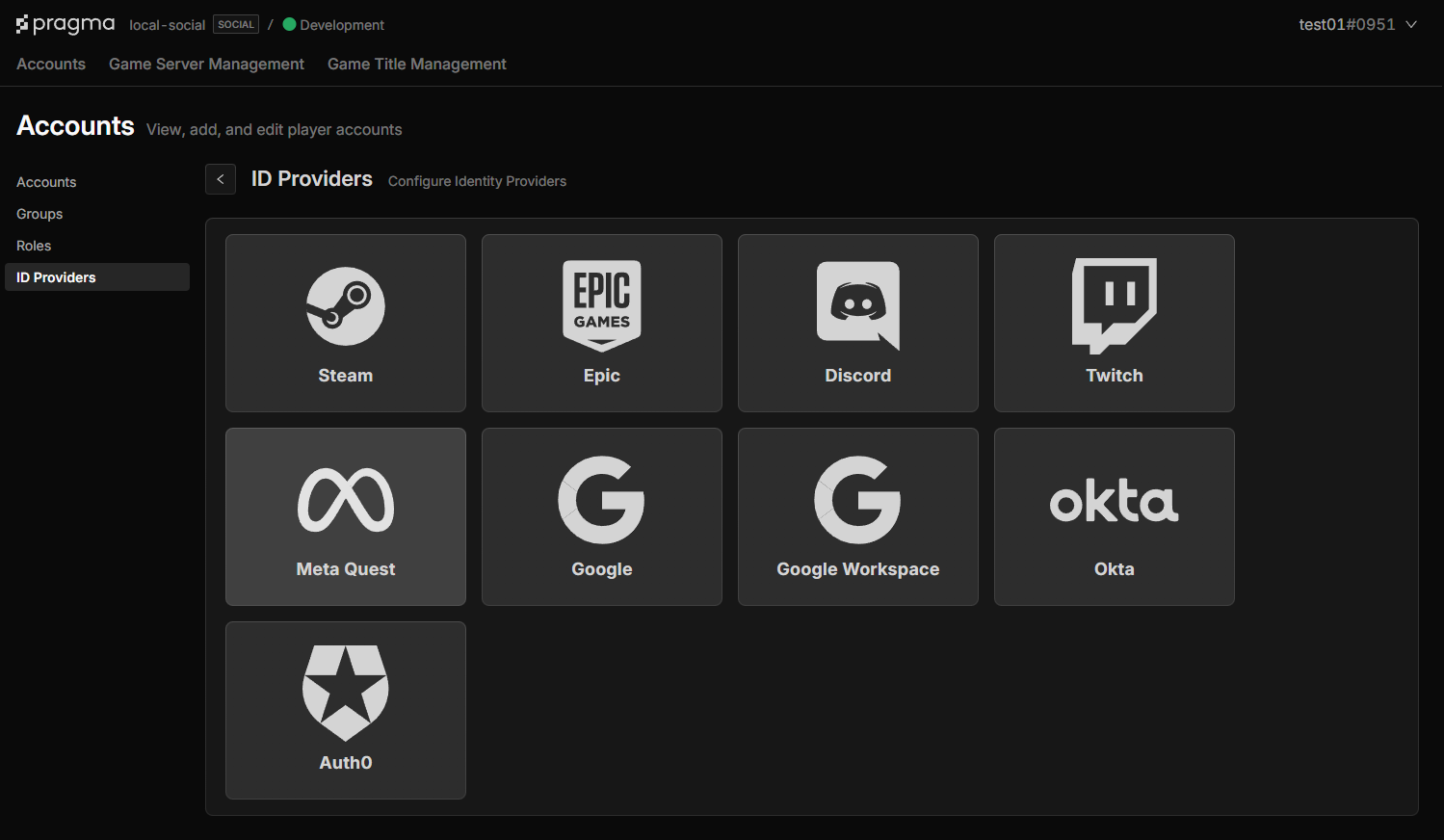
- Navigate to the ID Provider page: select the
AccountsTab →ID Providerin the side menu. - Select a provider and fill out the form.
- Click
Confirmto see changes. - Click
Deployto apply changes.
You can implement your own custom Order Provider Plugin. See the Create a Custom Order Provider Plugin guide for details.
3. Define the Order Mappings content catalog #
Once you have setup your store, you can create a orders mapping content catalog. This will map the provider’s identifiers with a unique Pragma identifier. This lets you map orders across providers to the same grant.
Requirements
skuIdmust be unique.- a source can only map to one skuId.
- a skuId can contain multiple sources of the same type. For example you can have three different Steam applications map back to the same sku.
Below is an example with Steam, Epic, and Twitch sources mapped to a single Pragma sku.
The content catalog must be defined in the OrderMappingsSpecs.json file.[project]/content/src/OrderMappingsSpecs.json
[
    {
        "skuId": "SmallGoldBundle",
        "sources": [
            {
                "provider": "STEAM",
                "steamSource": {
                    "inventory": {
                        "itemDefId": "475"
                    }
                }
            },
            {
                "provider" : "EPIC",
                "epicSource" : {
                    "entitlement" : {
                      "audienceItemId" : "231f97b3e1a44fb7b496e1832ec6b3d6"
                    }
                }
            },
            {
                "provider": "TWITCH",
                "twitchSource": {
                    "rewardId": "twitch_item_drop"
                }
            }
        ]
    }
]
Run the content apply command to validate and generate content catalogs.
./pragma content apply
Next steps #
You are now ready to define the fulfillment grants.
%22/%3E%3Cpath%20d=%22M82%20113.698c1.821%201.063%201.834%202.78.0%203.843l-13.084%207.687a7.17%207.17.0%2001-3.284.798%207.17%207.17.0%2001-3.284-.798l-13.16-7.687c-1.821-1.063-1.834-2.78.0-3.843l13.084-7.687a7.168%207.168.0%20016.568.0L82%20113.698z%22%20fill=%22url(%23b)%22/%3E%3Cpath%20d=%22M73.16%20114.658a.985.985.0%2001.487.368%201.037%201.037.0%20010%201.186.981.981.0%2001-.486.369l-6.383%203.846a3.438%203.438.0%2001-3.198.0l-6.42-3.846a.982.982.0%2001-.486-.369%201.035%201.035.0%20010-1.186.986.986.0%2001.486-.368l6.383-3.846a3.438%203.438.0%20013.198.0l6.42%203.846z%22%20fill=%22%23fff%22/%3E%3Cpath%20d=%22M111%2048c-1.455-.642-37.943-12.532-45.55-14.5-7.607%202.022-43.495%2016.358-44.95%2017l37.504%2065.718c.106.239.291.435.524.556l5.542%203.209a3.038%203.038.0%20002.76.0l5.51-3.209c.25-.123.441-.338.535-.599L111%2048z%22%20fill=%22url(%23c)%22/%3E%3Cpath%20fill-rule=%22evenodd%22%20clip-rule=%22evenodd%22%20d=%22M109.533%2040.686c-6.925%203.665-17.69%203.562-24.4-.311-6.892-3.98-6.892-10.431.0-14.41%201.422-.822%203.026-1.473%204.737-1.955-17.595-6.637-41.42-5.496-56.87%203.424-17.72%2010.23-17.72%2026.815.0%2037.044%2017.719%2010.23%2046.447%2010.23%2064.167.0%2011.194-6.462%2015.316-15.461%2012.366-23.792z%22%20fill=%22url(%23d)%22/%3E%3Cg%20opacity=%22.7%22%20filter=%22url(%23e)%22%3E%3Ccircle%20r=%2237.046%22%20transform=%22scale(1.22477%20.70706)%20rotate(45%20-55.303%2098.057)%22%20fill=%22url(%23f)%22/%3E%3C/g%3E%3Cpath%20fill-rule=%22evenodd%22%20clip-rule=%22evenodd%22%20d=%22M96.321%2027.615a8.615%208.615.0%2001-2.019-.824c-2.848-1.644-2.848-4.31.0-5.954%201.296-.748%202.958-1.156%204.653-1.223a41.764%2041.764.0%2000-1.788-1.092c-17.72-10.23-46.448-10.23-64.168.0-17.72%2010.23-17.72%2026.814.0%2037.044s46.448%2010.23%2064.168.0c8.025-4.633%2012.416-10.57%2013.172-16.63-4.598%201.417-10.442%201.007-14.318-1.23-4.746-2.74-4.746-7.183.0-9.923.099-.057.199-.113.3-.168zm9.666-1.923a2.064%202.064.0%2001-.068.076l.139.01c-.023-.03-.047-.058-.071-.086z%22%20fill=%22url(%23g)%22/%3E%3Ccircle%20r=%222%22%20transform=%22matrix(.86604%20.49997%20-.86604%20.49997%2062.464%2051)%22%20fill=%22%23121212%22/%3E%3Ccircle%20r=%222%22%20transform=%22matrix(.86604%20.49997%20-.86604%20.49997%2081.464%2045)%22%20fill=%22%23121212%22/%3E%3Ccircle%20r=%222%22%20transform=%22matrix(.86604%20.49997%20-.86604%20.49997%2043.642%2031)%22%20fill=%22%23121212%22/%3E%3Ccircle%20r=%222%22%20transform=%22matrix(.86604%20.49997%20-.86604%20.49997%2039.464%2045)%22%20fill=%22%23121212%22/%3E%3Ccircle%20r=%222%22%20transform=%22scale(1.22477%20.70706)%20rotate(45%20-12.95%2084.623)%22%20fill=%22%23121212%22/%3E%3Ccircle%20r=%222%22%20transform=%22matrix(.86604%20.49997%20-.86604%20.49997%2062.464%2035)%22%20fill=%22%23121212%22/%3E%3Cdefs%3E%3ClinearGradient%20id=%22a%22%20x1=%2265.415%22%20y1=%22133.384%22%20x2=%2262.707%22%20y2=%22116.141%22%20gradientUnits=%22userSpaceOnUse%22%3E%3Cstop%20stop-color=%22%23bebebe%22/%3E%3Cstop%20offset=%221%22%20stop-color=%22%23fff%22/%3E%3C/linearGradient%3E%3ClinearGradient%20id=%22b%22%20x1=%2265.415%22%20y1=%22126.531%22%20x2=%2257.672%22%20y2=%22104.287%22%20gradientUnits=%22userSpaceOnUse%22%3E%3Cstop%20stop-color=%22%23bebebe%22/%3E%3Cstop%20offset=%221%22%20stop-color=%22%23fff%22/%3E%3C/linearGradient%3E%3ClinearGradient%20id=%22c%22%20x1=%2265.409%22%20y1=%22107.427%22%20x2=%2265.409%22%20y2=%2274.173%22%20gradientUnits=%22userSpaceOnUse%22%3E%3Cstop%20stop-color=%22%23fff%22%20stop-opacity=%22.72%22/%3E%3Cstop%20offset=%221%22%20stop-color=%22%23fff%22%20stop-opacity=%220%22/%3E%3C/linearGradient%3E%3ClinearGradient%20id=%22d%22%20x1=%2265.007%22%20y1=%2270.496%22%20x2=%2261.493%22%20y2=%22.477%22%20gradientUnits=%22userSpaceOnUse%22%3E%3Cstop%20stop-color=%22%23edf2f9%22/%3E%3Cstop%20offset=%221%22%20stop-color=%22%23fff%22%20stop-opacity=%220%22/%3E%3C/linearGradient%3E%3ClinearGradient%20id=%22f%22%20x1=%2270.425%22%20y1=%2221.274%22%20x2=%22-.284%22%20y2=%2248.41%22%20gradientUnits=%22userSpaceOnUse%22%3E%3Cstop%20stop-color=%22%231efff1%22/%3E%3Cstop%20offset=%221%22%20stop-color=%22%231548ff%22/%3E%3C/linearGradient%3E%3ClinearGradient%20id=%22g%22%20x1=%2220.05%22%20y1=%2263.78%22%20x2=%2255.07%22%20y2=%22-9.969%22%20gradientUnits=%22userSpaceOnUse%22%3E%3Cstop%20offset=%22.156%22%20stop-color=%22%231efff1%22/%3E%3Cstop%20offset=%221%22%20stop-color=%22%231548ff%22/%3E%3C/linearGradient%3E%3Cfilter%20id=%22e%22%20x=%224.71%22%20y=%226.763%22%20width=%22120.747%22%20height=%2282.388%22%20filterUnits=%22userSpaceOnUse%22%20color-interpolation-filters=%22sRGB%22%3E%3CfeFlood%20flood-opacity=%220%22%20result=%22BackgroundImageFix%22/%3E%3CfeBlend%20in=%22SourceGraphic%22%20in2=%22BackgroundImageFix%22%20result=%22shape%22/%3E%3CfeGaussianBlur%20stdDeviation=%227.5%22%20result=%22effect1_foregroundBlur%22/%3E%3C/filter%3E%3C/defs%3E%3C/svg%3E)